- SS&C Blue Prism Community
- Get Help
- Digital Exchange
- Re: Unable to make dynamic xpath selection
- Subscribe to RSS Feed
- Mark Topic as New
- Mark Topic as Read
- Float this Topic for Current User
- Bookmark
- Subscribe
- Mute
- Printer Friendly Page
Unable to make dynamic xpath selection

- Mark as New
- Bookmark
- Subscribe
- Mute
- Subscribe to RSS Feed
- Permalink
- Email to a Friend
- Report Inappropriate Content
19-02-26 11:39 PM
Hello!
I'm trying to make a dynamic selection based on an xpath.
I need to read a path, and click on the corresponding checkbox. Currently i'm using this expression to identify my checkbox, where [var_path] will be a variable text i give my navigation stage as an input.
//tr[@data-path=[var_path]]//coral-checkbox[@coral-table-rowselect]//input
If i replace [var_path] with a real value, the element gets correctly highlighted. But when i try to use the var, it returns an error as if it won't find the element.
any suggestions on why it might be?

- Mark as New
- Bookmark
- Subscribe
- Mute
- Subscribe to RSS Feed
- Permalink
- Email to a Friend
- Report Inappropriate Content
20-02-26 07:06 AM
Could you please try this expression
//tr[@data-path='[var_path]']//coral-checkbox[@coral-table-rowselect]//input
RPA Tech Lead

- Mark as New
- Bookmark
- Subscribe
- Mute
- Subscribe to RSS Feed
- Permalink
- Email to a Friend
- Report Inappropriate Content
20-02-26 08:28 AM
- Mark as New
- Bookmark
- Subscribe
- Mute
- Subscribe to RSS Feed
- Permalink
- Email to a Friend
- Report Inappropriate Content
20-02-26 08:33 AM
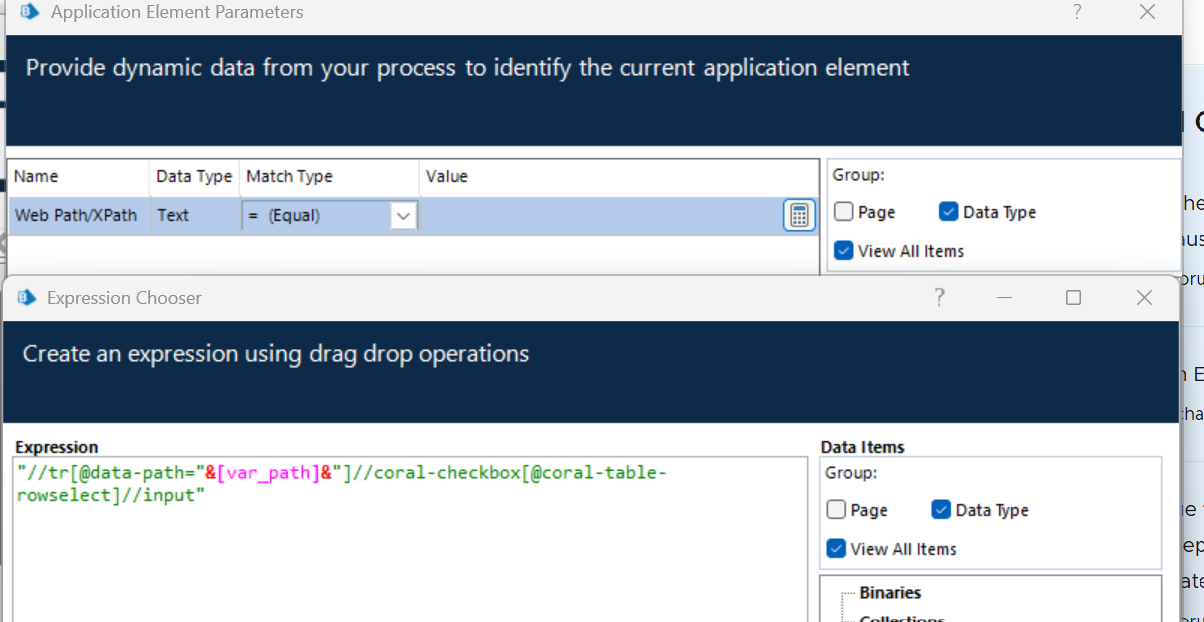
Hi all, i succeded in the highlighting of the element. Basically i but a real path instead of the variable in the app modeler, and then this expression in the calculate field inside of the navigation stage: "//tr[@data-path="&[var_path]&"]//coral-checkbox[@coral-table-rowselect]//input"
now what happens is that, if i try to highlight the element, it gives me the right highlight, but it won't actually click on the checkbox and return the same error "item not found". Not sure why. any ideas?
- Mark as New
- Bookmark
- Subscribe
- Mute
- Subscribe to RSS Feed
- Permalink
- Email to a Friend
- Report Inappropriate Content
20-02-26 09:34 AM
You could try changing the element type for the element in the application modeller and see if that works.
Alternatively you could re-spying the element to capture the outer/inner region instead around the checkbox and give it a try.
- Mark as New
- Bookmark
- Subscribe
- Mute
- Subscribe to RSS Feed
- Permalink
- Email to a Friend
- Report Inappropriate Content
20-02-26 10:33 AM
"//tr[@data-path="&[var_path]&"]//coral-checkbox[@coral-table-rowselect]//input"
should i use this expression in the application modeller or in the navigate stage? it's not clear.
Actually, i was succeding in highlighting the element because i was giving a fixed value in the application modeller...
now using the variable won't work. Not sure if i should leave empty the attribute value in the modeller and set it as dynamic, in order to give it a value through the calculate field in the navigation stage.

- Mark as New
- Bookmark
- Subscribe
- Mute
- Subscribe to RSS Feed
- Permalink
- Email to a Friend
- Report Inappropriate Content
20-02-26 05:01 PM
in Application modeler you have make that element dynamic
next, in object, use calculation stage , use your expression and save that in one data item (example: data item name is xpath_value)
next, add navigation stage , select that element , just beside the element you will have small button , click on it .. it will open the expression box , there enter your data item which is xpath_value
next, select your action and click ok,
- Mark as New
- Bookmark
- Subscribe
- Mute
- Subscribe to RSS Feed
- Permalink
- Email to a Friend
- Report Inappropriate Content
23-02-26 09:39 AM
Thank you @naveed_raza , i managed.
I basically did what you said and it worked.
Thanks to everyone!
Best
Alessandro
- Mark as New
- Bookmark
- Subscribe
- Mute
- Subscribe to RSS Feed
- Permalink
- Email to a Friend
- Report Inappropriate Content
23-02-26 06:47 PM
glad to hear .. Happy Automating !!

